As software applications, operating systems, and media formats become increasingly resource-intensive, computer systems gradually experience performance degradation. While software optimizations, drive cleanups, and operating system reinstalls can provide temporary relief, physical hardware components eventually reach their processing limits. Upgrading specific hardware components offers a cost-effective alternative to replacing an entire desktop or workstation, targeting physical bottlenecks to restore system responsiveness, improve workflow efficiency, and extend hardware longevity.
Understanding how individual hardware upgrades impact system performance requires analyzing how components interact within a computing architecture. By strategically identifying resource constraints, users can invest in hardware improvements that deliver immediate, measurable performance gains.
Understanding and Identifying System Bottlenecks
Computing systems rely on a balanced ecosystem of components, including the central processing unit, system memory, storage drives, graphics hardware, and power delivery systems. System performance is dictated by the slowest component in a given workflow, a phenomenon known as a bottleneck.
When one component reaches one hundred percent utilization while others remain underutilized, the overall execution speed drops to match the maximum capacity of the restricted hardware. For example, pairing a high-end processor with a slow mechanical hard drive causes the processor to spend idle cycles waiting for data to load from physical disk platters. Identifying which component is causing the operational bottleneck ensures that hardware upgrade budgets are spent effectively.
Transitioning to Solid-State Storage Infrastructure
Replacing a traditional mechanical Hard Disk Drive (HDD) with a Solid-State Drive (SSD), or upgrading an older SATA SSD to a modern Non-Volatile Memory Express (NVMe) drive, yields the most dramatic performance improvement for general computing tasks.
Mechanical hard drives rely on spinning magnetic platters and physical read/write heads, resulting in high latency and slow data transfer speeds. Solid-state drives use non-volatile flash memory with no moving parts, enabling near-instantaneous file access.
The performance advantages of upgrading to solid-state storage include:
-
Accelerated Boot Times: Operating system boot durations drop from minutes on a mechanical drive to mere seconds on a fast NVMe SSD.
-
Rapid Application Execution: Software programs, web browsers, and heavy creative applications launch instantly due to high random read speeds.
-
Streamlined Data Transfers: Sequential file transfer speeds improve significantly, reducing wait times when moving large media files or database archives.
-
Reduced Latency: Flash memory reduces input/output latency, virtually eliminating system freezes caused by background disk reads.
For demanding workloads like video editing, database management, and 3D rendering, upgrading to high-bandwidth PCIe NVMe SSDs ensures that massive files load into memory without system stutter.
Expanding System Memory for Multi-Tasking and Capacity
Random Access Memory (RAM) serves as the temporary workspace for active operating system tasks, running applications, and open browser tabs. When a system runs out of physical RAM, the operating system is forced to use virtual memory, swapping inactive data onto the primary storage drive. Because storage media is exponentially slower than system memory, virtual memory swapping causes severe lag, slow application switching, and system unresponsiveness.
Upgrading system memory capacity resolves these performance limitations:
-
Seamless Multitasking: Increasing RAM capacity from eight gigabytes to sixteen or thirty-two gigabytes allows users to run dozens of browser tabs, communication tools, and heavy applications concurrently without slowdowns.
-
Elimination of Page Filing Lag: Ample physical RAM prevents the operating system from relying on slow disk-based page files, preserving smooth user interactions.
-
Dual-Channel Bandwidth Expansion: Installing memory modules in matching pairs enables dual-channel memory architecture, effectively doubling the data transfer bandwidth between the memory controller and the processor.
Higher-frequency RAM with lower latency timing also enhances processing throughput in CPU-bound operations, providing smoother frame rates in real-time rendering applications and faster compilation times for software developers.
Enhancing Graphics Processing Units for Parallel Workloads
The Graphics Processing Unit (GPU) is specialized hardware designed to process millions of mathematical calculations simultaneously. While originally engineered for rendering 3D computer graphics, modern GPUs act as parallel processing engines for video editing, machine learning model inference, CAD modeling, and scientific simulations.
Upgrading from integrated graphics—where the CPU shares system memory for visual rendering—to a dedicated graphics card provides several critical performance advantages:
-
Dedicated Video Memory (VRAM): Dedicated graphics cards feature specialized high-speed VRAM, freeing up primary system memory for general application tasks and enabling high-resolution texture processing.
-
Hardware-Accelerated Encoding and Decoding: Modern GPUs contain dedicated hardware media engines that encode and decode high-resolution video formats, drastically shortening video export times and reducing CPU utilization during playback.
-
Parallel Compute Scaling: Complex visual effects, 3D ray tracing, and AI-driven image processing workloads scale directly with the core count and compute capabilities of modern graphics architectures.
Upgrading the Central Processing Unit and Core Architecture
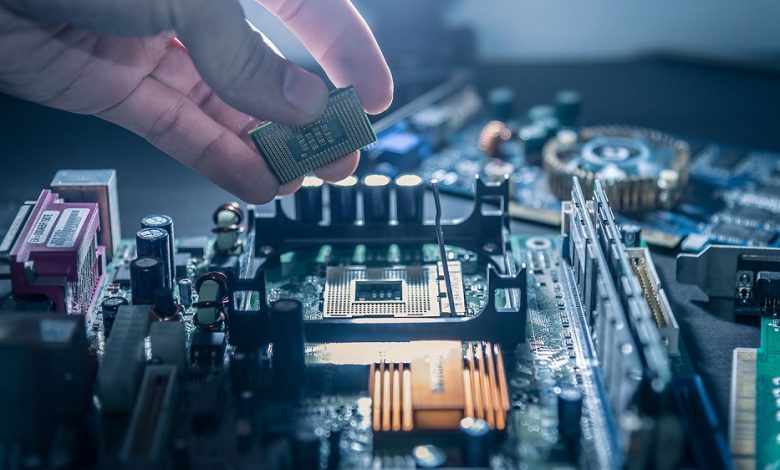
The Central Processing Unit (CPU) acts as the primary execution engine of the computer, coordinating operations across all hardware peripherals and running core application logic. Upgrading a CPU increases performance through higher clock speeds, improved Instructions Per Cycle (IPC) architecture, and higher physical core counts.
A CPU upgrade impacts performance across multiple vectors:
-
Single-Threaded Performance: Higher single-core clock speeds and IPC enhancements accelerate legacy applications, web browsing responsiveness, and basic productivity software that cannot utilize multiple processing cores.
-
Multi-Threaded Throughput: Increasing physical core and thread counts allows the system to process parallel tasks efficiently, drastically speeding up code compilation, 3D scene rendering, file compression, and video encoding.
-
Updated Instruction Sets: Modern CPU architectures introduce specialized instruction sets that optimize mathematical processing, encryption protocols, and artificial intelligence workloads.
Upgrading a processor often requires verifying motherboard socket compatibility, updating system BIOS firmware, and ensuring the motherboard Voltage Regulator Modules (VRMs) can deliver stable power to the new chip.
Essential Supporting Infrastructure: Power Supplies and Thermal Management
Upgrading primary processing components like CPUs and GPUs increases total electrical power consumption and heat output. Failing to upgrade supporting power delivery and thermal management infrastructure can result in system instability, unexpected shutdowns, and automatic thermal throttling.
Power Supply Unit (PSU) Capacity
A high-quality power supply unit provides clean, stable DC voltage to all internal hardware. Upgrading to a higher-wattage, 80 Plus-certified power supply ensures that power delivery remains stable under heavy component power spikes, preventing voltage drops and hardware instability.
Thermal Management Solutions
Modern processors and graphics cards feature automated thermal management protocols that dynamically adjust clock speeds based on operating temperatures. If internal temperatures exceed safe operating limits, the hardware automatically lowers its clock speed—a process known as thermal throttling—to prevent hardware damage, causing severe performance drops.
Upgrading thermal hardware preserves maximum performance levels:
-
Aftermarket CPU Coolers: Replacing basic stock coolers with high-efficiency air towers or Liquid All-In-One (AIO) coolers lowers operating temperatures, allowing processors to maintain high boost clock frequencies indefinitely.
-
High-Airflow Chassis Design: Upgrading case fans and selecting computer cases with mesh ventilation improves ambient airflow, exhausting heat generated by high-power GPUs and power delivery components.
-
Fresh Thermal Interface Material: Replacing aged, dried-out thermal paste between the processor and heatsink restores thermal conductivity, immediately lowering core temperatures under load.
Strategic Decision Framework for Hardware Upgrades
To maximize the return on hardware investments, users should follow a structured evaluation methodology before purchasing components:
-
Audit Current Performance Metrics: Use built-in system monitoring tools to observe real-time resource utilization during peak workloads. Identify whether CPU, RAM, GPU, or storage disk usage hits one hundred percent during operational slowdowns.
-
Verify System Compatibility: Check motherboard socket types, RAM generation standards (such as DDR4 versus DDR5), expansion slot physical clearance, and power supply cable availability before selecting upgrade hardware.
-
Assess Financial Feasibility: Compare the total cost of individual component upgrades against the price of a complete modern system. If upgrading requires replacing the CPU, motherboard, RAM, and power supply simultaneously, purchasing a new pre-built or custom platform may yield better financial value.
-
Prioritize High-Impact Component Upgrades: For general office tasks, prioritize SSD upgrades and RAM capacity. For video editing and rendering, prioritize storage speed, RAM volume, and GPU capabilities. For heavy data calculations and software development, prioritize CPU core counts and fast system memory.
Frequently Asked Questions
How do I determine whether my CPU or GPU is causing a performance bottleneck during intensive tasks?
You can identify bottlenecks by monitoring component utilization percentages using system management software while running intensive tasks. If your GPU utilization reaches ninety-nine or one hundred percent while CPU usage remains lower, your system is GPU-bottlenecked. Conversely, if your CPU utilization sits at or near one hundred percent while GPU utilization stays significantly lower, the processor is limiting overall system throughput.
Does adding more RAM increase system speed if my current memory usage never reaches one hundred percent?
Adding extra RAM capacity will not noticeably increase system speed if your current daily workloads do not consume your existing physical memory capacity. However, ensure you evaluate peak memory usage during your heaviest multitasking sessions. If your system memory utilization stays consistently below seventy or eighty percent without using disk page files, upgrading memory capacity will yield minimal speed gains, though ensuring your existing memory runs in a fast dual-channel configuration may still improve bandwidth.
What is the difference between SATA SSDs and NVMe SSDs in terms of real-world daily performance?
SATA SSDs are limited by legacy controller interfaces, capping maximum data transfer speeds at around five hundred to six hundred megabytes per second. NVMe SSDs utilize the high-speed PCIe bus, achieving transfer speeds ranging from three thousand to over seven thousand megabytes per second. In daily general usage like web browsing and booting, the difference feels subtle because both offer low access latency. However, during heavy file transfers, 4K video editing, or loading massive data files, NVMe drives perform significantly faster than SATA drives.
Is it safe to upgrade a power supply unit without changing other computer components?
Yes, upgrading a power supply unit without changing other components is completely safe, provided the replacement PSU is from a reputable manufacturer and uses standard ATX power specifications. A power supply only delivers the exact electrical wattage demanded by system components. Installing a higher-wattage power supply provides headroom for future hardware upgrades without delivering harmful excess power to existing components.
Why does thermal throttling occur, and how does upgrading cooling hardware prevent it?
Thermal throttling is a protective hardware mechanism where CPUs and GPUs automatically lower their clock speeds and operational voltages to lower heat output when internal temperatures cross safe operating thresholds (typically between eighty-five and one hundred degrees Celsius). Upgrading to high-performance CPU coolers, applying fresh thermal interface material, and improving case airflow dissipates heat faster, keeping component temperatures low and enabling hardware to maintain maximum boost speeds indefinitely.
Can upgrading hardware invalidate existing operating system licenses or software configurations?
Upgrading minor components like memory modules, graphics cards, power supplies, or secondary storage drives rarely affects operating system licensing or software setups. However, upgrading the motherboard—or performing a major platform upgrade involving both the motherboard and processor—may cause digital operating system licenses tied to specific hardware signatures to deactivate, requiring license re-activation or re-entry of product keys.
How does dual-channel memory configuration improve performance compared to single-channel memory?
Dual-channel memory configuration utilizes two independent 64-bit communication channels between the system memory modules and the CPU memory controller, effectively doubling the theoretical memory bandwidth from 64 bits to 128 bits. Running memory in dual-channel mode prevents processing bottlenecks in memory-intensive tasks, delivering smoother frame rates in applications, faster file compression speeds, and improved system responsiveness compared to running a single memory module of equivalent total capacity.