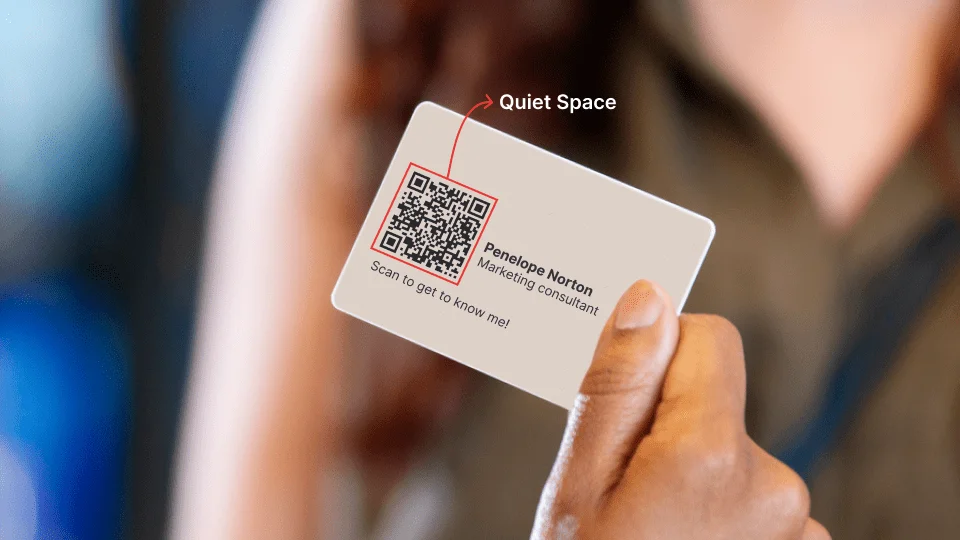
In today’s fast-paced business world, the way you share your contact details matters as much as the conversation itself. Clients appreciate convenience, and the traditional paper business card is no longer enough to stand out. A digital solution is more effective, and that’s where a vCard QR code generator comes in. It allows you to share your professional details instantly, while presenting yourself as modern, efficient, and client-focused.
Why Use a vCard QR Code Generator?
A vCard QR code generator gives you a simple yet powerful way to share your details. Instead of expecting clients to type out your phone number or email, they can scan a single code and have your information saved directly to their device. This process reduces errors, eliminates wasted time, and ensures your contact details remain accessible. More importantly, it shows clients that you are ahead of the curve, blending professionalism with technology.
Step-by-Step: How to Create a vCard That Stands Out
- Select the Right Generator
The first step is choosing a reliable vCard QR code generator. The right tool should allow you to input details easily, offer both static and dynamic codes, and provide clear output formats. A dynamic option is especially useful because you can update your contact details without changing the QR code itself. - Prepare Your Contact Information
Gather all the details you want to share before starting. Include your full name, designation, company name, phone number, email address, website, and office address. If social media adds value to your professional image, include those as well. Keep it concise and relevant, as too much information can overwhelm the user. - Customize the Design
One of the most effective ways to make your vCard memorable is by customizing its design. Many generators allow you to add your brand colors, company logo, or even a professional headshot. This creates consistency with your brand identity while ensuring that your QR code looks polished and professional. - Generate and Test the Code
After inputting your information and customizing the look, generate the QR code. Testing is critical—scan it on different devices to ensure all details are saved correctly and links open smoothly. A non-functional code can leave a negative impression, so this step should never be skipped. - Choose the Right File Format
Download your QR code in a format that suits your needs. PNG or JPG files work well for digital use, while vector formats such as SVG are best for printing. This ensures your QR code remains clear and scannable, whether it’s on a small business card or a large display. - Integrate It into Your Touchpoints
Once created, use your QR code across all platforms where clients may interact with you. Add it to business cards, email signatures, brochures, presentations, and even your website. This not only increases its visibility but also makes it easy for clients to connect with you from multiple channels.
Tips to Impress Clients with Your vCard
- Keep your design simple but aligned with your brand.
- Use contrasting colors to make scanning easier.
- Update your details regularly if you use a dynamic QR code.
- Highlight only the information that strengthens your professional presence.
Conclusion
Creating a vCard that impresses clients is no longer complicated. With a Vcard QR code generator, you can design and share your professional details in seconds while showcasing a forward-thinking approach. By customizing the look, ensuring accuracy, and integrating the code across multiple platforms, you make it effortless for clients to save your information. This small yet impactful step demonstrates your professionalism, strengthens client relationships, and sets you apart in today’s competitive environment.